![Symbol_transparent_black.png]](https://help.takeup.ai/hs-fs/hubfs/Symbol_transparent_black.png?height=50&name=Symbol_transparent_black.png)
Layout & Navigation Overview
This article outlines each section of the app and how to navigate between them.
Dashboard
When you first log into the TakeUp web app, you’ll land on the Dashboard. From here, you can access your property’s core performance metrics, booking behavior, and pacing trends.
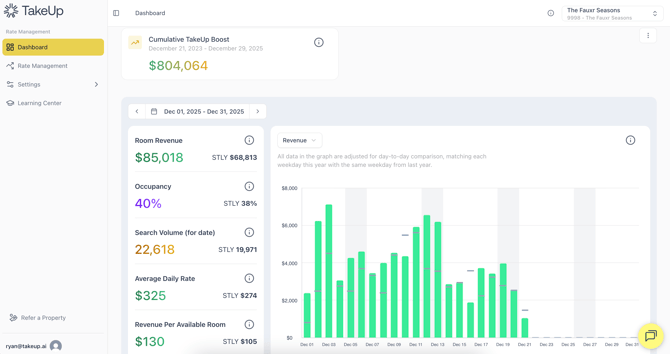
The Dashboard is your home base. It provides a snapshot of how your property is performing and how that performance compares to last year.
Top-Level Metrics
At the top of the Dashboard, you’ll see the primary KPIs you’re already familiar with:
-
Room Revenue
-
Occupancy
-
ADR
-
RevPAR
You can switch between metrics using the left-hand panel or the dropdown menu above the chart.
Daily YOY Comparison
To the right of the top-level metrics is a day-by-day comparison to the same time last year. This view lets you monitor short-term pacing and see how each day stacks up historically.
Booking Windows
Scrolling further down, the Booking Windows visualization shows how far in advance guests are booking compared with last year.
You can filter this data by:
-
Weekdays / Weekends / All Dates
-
Weekly, Bi-weekly, Monthly, or Quarterly views
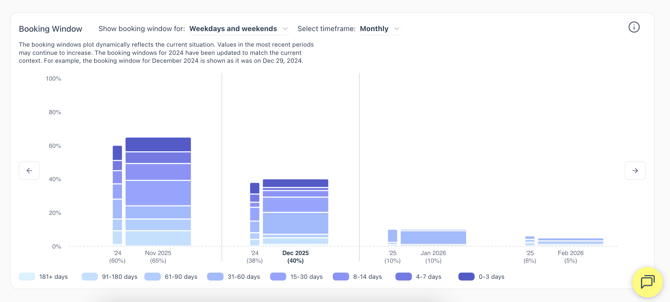
This chart gives you a clear picture of shifting booking behavior and demand patterns.
Rate Management Page
Head to the Rate Management page in the left hand navigation menu.
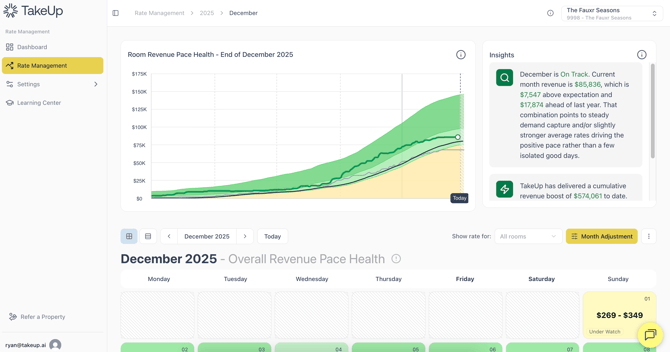
The Rate Management page is where you’ll spend the most time. It serves two major purposes:
-
Understanding pacing and demand at a monthly and daily level
-
Controlling your rate settings, bounds, and TakeUp behavior
Monthly Pace Health View
The top half of the page displays:
-
Room revenue pace health for the selected month
-
Cumulative revenue to date
-
Pace health zones (Ahead, On Track, Underwatch)
These visualizations help you understand how demand is evolving and whether pricing is performing as expected.
Monthly Adjustments
In the top-right above the calendar, the Month Adjustments button lets you edit:
-
Monthly TakeUp behavior settings (Conservative, Moderate, Courageous)
-
Monthly rate bounds for weekdays and weekends
Calendar View & Day Devel Adjustments
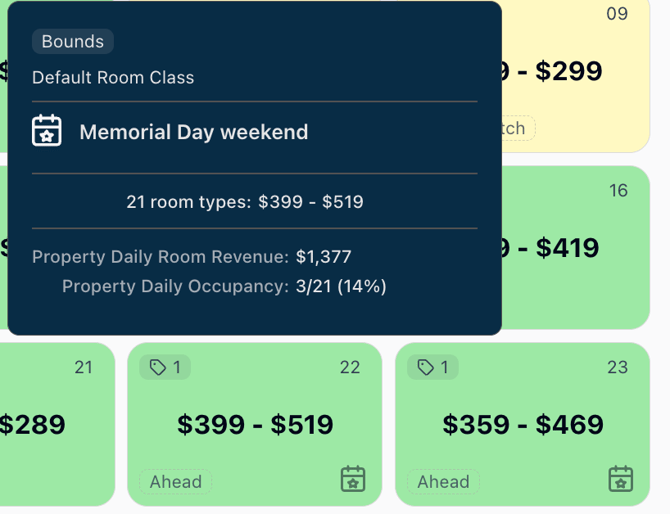
Below the pacing chart is the daily calendar. For each day, you’ll see:
-
The base room rate
-
The range between your lowest and highest room class
-
A color-coded pacing zone that reflects the month’s performance for that date
- Custom day-level rate settings
Clicking on any date opens a detailed view that includes:
-
A revenue pace health visualization for that specific date
-
Your rate controls, including:
-
Rate bounds (floors and ceilings)
-
Fixed/overridden rates
-
Nudge Up/Nudge Down/Alternate Nudge
-
Across the top of the calendar, you’ll also find options to:
-
Switch between room types
-
View a weekly detail view that shows daily occupancy and rates
-
Toggle between month and week formats
Settings Page
The Settings tab houses your year-round defaults.
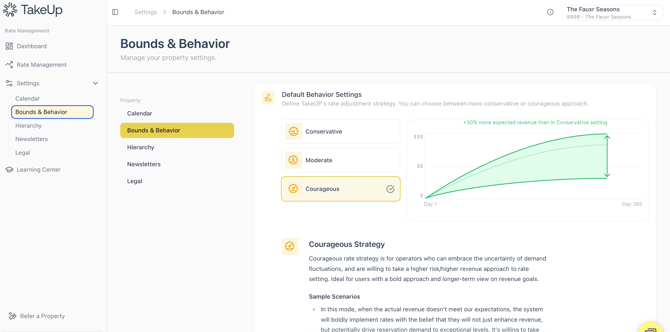
Year-Round TakeUp Behavior & Bounds
Here, you can update:
-
Default TakeUp behavior strategy
-
Default year-round rate bounds
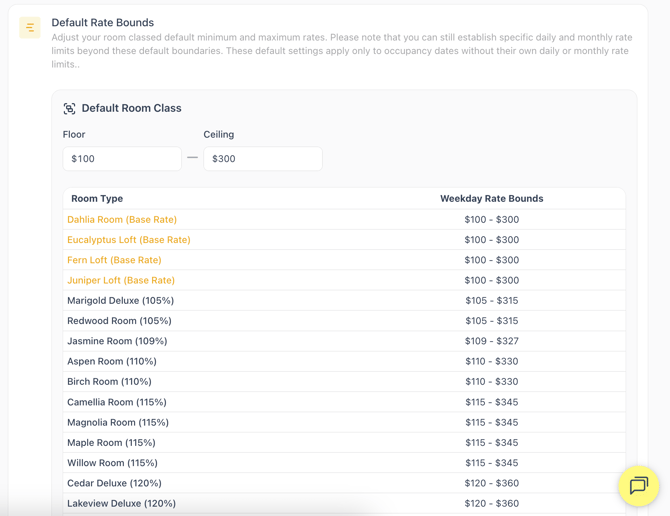
Most properties use monthly settings, which override these defaults, but the year-round settings act as a safety net if a month has no custom configuration.
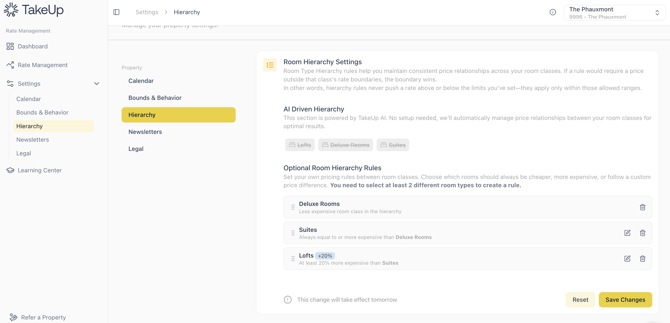
Hierarchies (Room Classes)
If your property uses room classes, the Hierarchies tab is where you can:
-
View or adjust the order of your room classes
-
Edit the percentage deltas between each tier
Learning Center
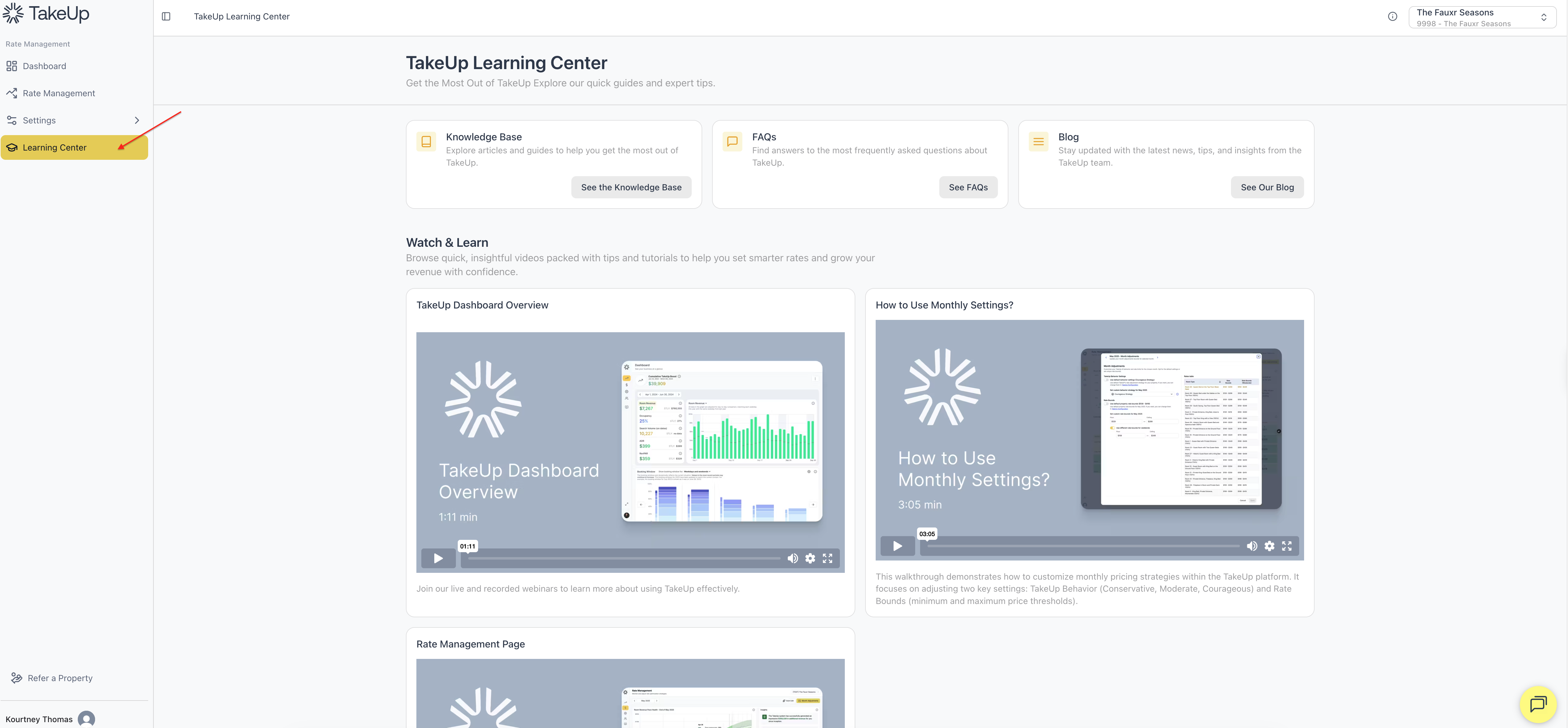
The Learning Center tab takes you to a library of resources for learning about TakeUp, including a direct link to this Knowledge Base with detailed articles, additional FAQs and Blogs on the TakeUp website, and a few quick tutorials.
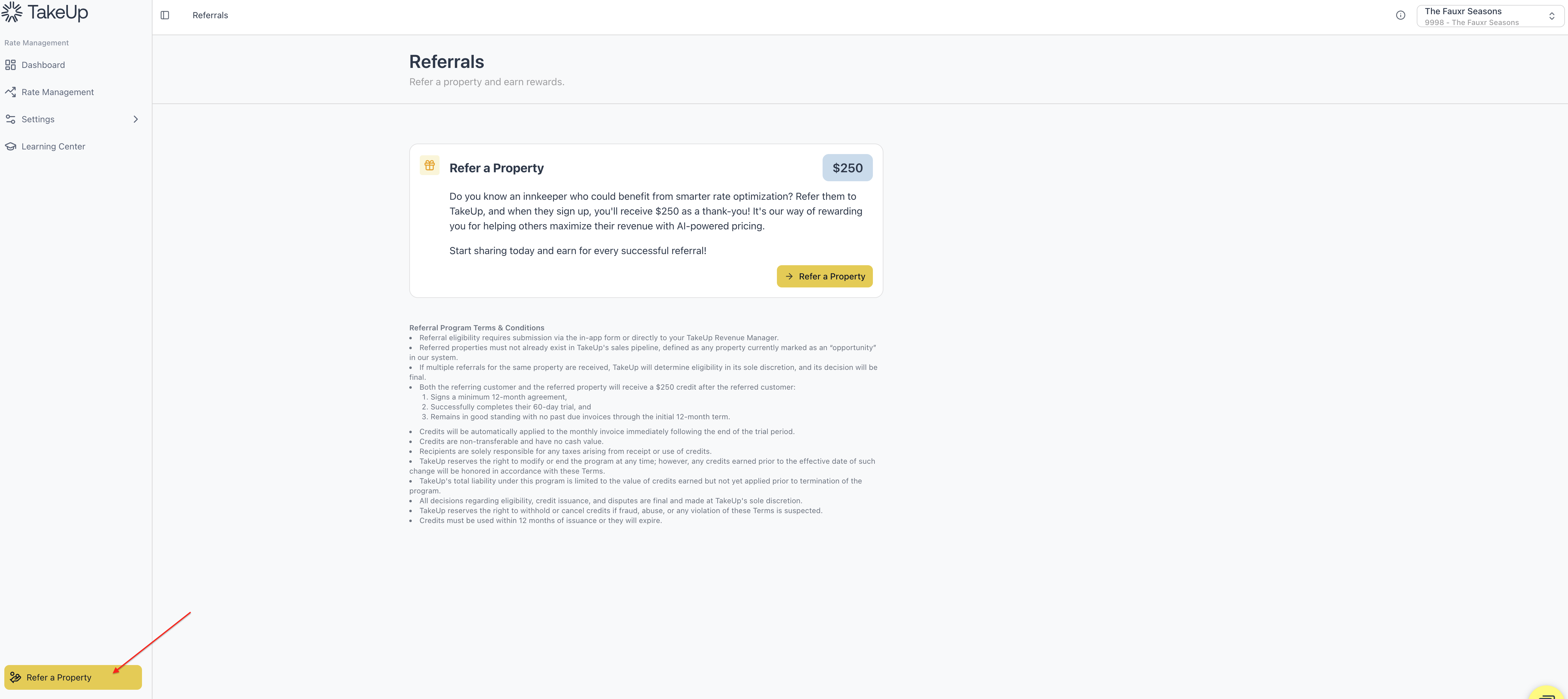
Refer a Property
The Refer a Property tab in the lower left hand navigation takes you straight to a form where you can submit a referral and earn rewards!